


Introduction
Artificial Intelligence can greatly facilitate access to data, allowing non-technical users to query information naturally. PowerBuilder developers can integrate "Text-to-SQL" capabilities directly into their applications, enabling a dynamic query system powered by Large Language Models (LLMs).
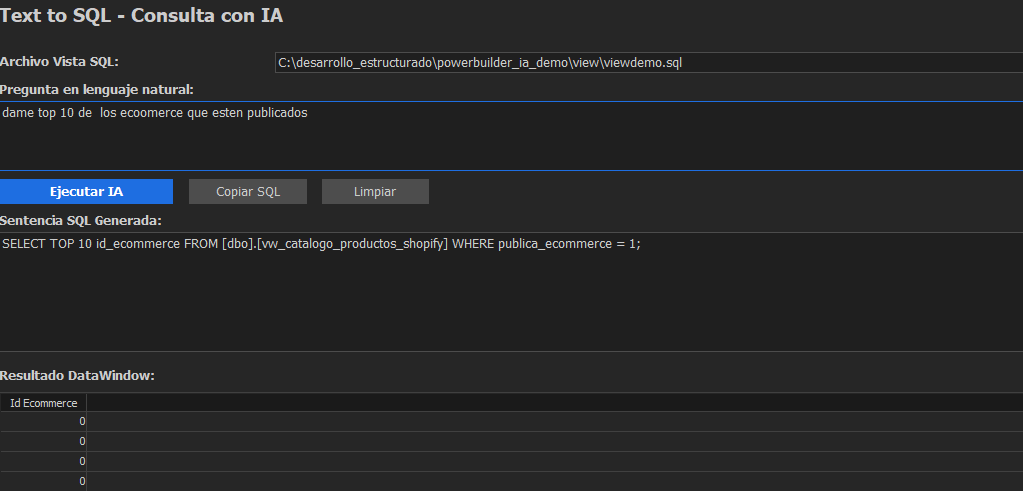
This article demonstrates how to build a smart client in PowerBuilder (w_text_to_sql) that allows users to select a view structure, ask a question in natural language, and receive the results in a DataWindow, interacting in real-time with Google's Gemini 2.5 Flash Lite model via its REST API.
What is Text-to-SQL?
It is the process of converting queries formulated in natural language into structured SQL commands. In our implementation, we follow these steps:
- Context: The LLM is provided with schemas, scripts, or SQL views (DDL), along with their exact columns available in the database.
- Generation: The LLM acts as a Senior DBA and generates an SQL statement (T-SQL) based on the user's question, mapping keywords to the correct columns.
- Execution: PowerBuilder validates the SQL, processes it, and dynamically executes it using the native DataWindows functionality.
General Architecture
The system operates directly between the PowerBuilder client and the cloud API, without the need for an intermediate backend to process prompts.
┌───────────────────────────────────────────────────────┐
│ PowerBuilder Client (PB 2022+)                        │
│ ┌───────────────────────────────────────────────────┐ │
│ │ w_text_to_sql                                     │ │
│ │ (Main Window)                                     │ │
│ │  - SQL script selection (View)                    │ │
│ │  - Column validation (SyntaxFromSQL)              │ │
│ │  - Prompt Construction (Rules, DDL)               │ │
│ │  - Request Generation (JsonGenerator)             │ │
│ │  - HTTP Request (HTTPClient)                      │ │
│ │  - Response Parsing (nvo_json)                    │ │
│ │  - Dynamic DataWindow Creation                    │ │
│ └───────────────────────────────────────────────────┘ │
└─────────────────────────│─────────────────────────────┘
                          │ HTTP REST / JSON
                          ▼
┌──────────────────────────────────────────────────────┐
│ Google AI Studio API                                 │
│ (Gemini 2.5 Flash Lite Model)                        │
└──────────────────────────────────────────────────────┘
Main Components
w_text_to_sql— Main window containing all the business logic, user interface (questions and grids), and orchestrating the HTTP communication.JsonGenerator— Native PowerBuilder object used to serialize the DDL and the prompt without corrupting the JSON structure.HTTPClient— Responsible for secure network communication to the Google Gemini API.nvo_json— Non-visual object for natively parsing the structured response from the AI.- Dynamic DataWindow — To render on screen the results of the generated SQL using
SyntaxFromSQL.
Prerequisites
Before starting, ensure you have the following elements installed/configured:
- PowerBuilder 2022 R3 or later (with support for the
JsonGeneratorandHTTPClientclasses). - A database connected via ODBC (Sybase/SAP SQL Anywhere or SQL Server) so that the
SyntaxFromSQLfunction can validate and execute the queries. - A Google AI Studio API Key to authenticate requests to the Gemini model.
Implementation
Step 1: Reading and Analyzing the SQL View
In order for the AI to know what structure it can query, the system reads a .sql script provided by the user. The PowerBuilder application intelligently extracts the view name from the script by analyzing the text.
// Open the file and search for "CREATE VIEW" in each line
li_file_text = FileOpen(ls_ruta_archivo, TextMode!, Read!, Shared!)
IF li_file_text > 0 THEN
    DO WHILE FileReadEx(li_file_text, ls_linea) > 0
        IF Pos(Upper(ls_linea), "CREATE VIEW ") > 0 THEN
            // Logic to extract ls_view_name by skipping spaces
            // ...
            EXIT
        END IF
    LOOP
    FileClose(li_file_text)
END IF
Step 2: Early Column Validation
To narrow down the AI's margin of error (hallucinations), PowerBuilder queries the database in real-time to find out the real columns that the view has, executing a blind DataWindow:
// We execute SELECT TOP 0 * to get metadata without bringing data
ls_syntax_temp = SQLCA.SyntaxFromSQL("SELECT TOP 0 * FROM " + ls_view_name, "Style(Type=Grid)", ls_errors_temp)

IF Len(ls_errors_temp) = 0 THEN
    lds_temp.Create(ls_syntax_temp, ls_errors_temp)
    li_total_cols = Integer(lds_temp.Describe("DataWindow.Column.Count"))
    FOR li_col = 1 TO li_total_cols
        ls_col_name = lds_temp.Describe("#" + String(li_col) + ".Name")
        ls_columns += ls_col_name + ", "
    NEXT
END IF
Step 3: Prompt Engineering (System Prompt)
A rigorous prompt is built for the API that delimits Gemini's behavior, demanding that it act as a Senior DBA in T-SQL, and forcing it to use only the columns extracted in the previous step.
ls_prompt = "You act as a Senior DBA with 20 years of experience in SQL Server (T-SQL).~r~n"
ls_prompt += "I will provide you with the script of a database VIEW and a user question.~r~n"

// Schema and columns injection
ls_prompt += "The view is named: " + ls_view_name + "~r~n"
ls_prompt += "The ONLY columns that exist in this view are: " + ls_columns + "~r~n"

// Strict anti-hallucination rules
ls_prompt += "## RULES FOR GENERATING SQL ##~r~n"
ls_prompt += "1. THE QUERY MUST BE MADE TO THE VIEW " + ls_view_name + " and NOT to the base tables.~r~n"
ls_prompt += "3. SMART SEMANTIC MAPPING: If the user uses a similar term... mandatorily ASSIGN IT to the correct column...~r~n"
ls_prompt += "7. Return ONLY the SQL statement as plain text, without markdown.~r~n"

ls_prompt += "## USER QUESTION ##~r~n" + ls_pregunta
Step 4: Secure JSON Payload Creation
To ensure that the SQL script injected into the prompt does not corrupt the JSON format (due to line breaks and double quotes in the SQL code), the JsonGenerator object is used. This component handles automatic escaping.
JsonGenerator lnv_json_gen
lnv_json_gen = create JsonGenerator
ll_root = lnv_json_gen.CreateJsonObject()

// Create contents and parts array...
ll_contents = lnv_json_gen.AddItemArray(ll_root, "contents")
// ...

// Insert the prompt. PowerBuilder escapes everything automatically
lnv_json_gen.AddItemString(ll_part_obj, "text", ls_prompt)

// Temperature configuration at 0.0 for deterministic responses
ll_config = lnv_json_gen.AddItemObject(ll_root, "generationConfig")
lnv_json_gen.AddItemNumber(ll_config, "temperature", 0.0)

ls_json = lnv_json_gen.GetJsonString()
Step 5: API Invocation and Dynamic Rendering
The window invokes the Google service using HTTPClient, gets the response, extracts the pure query text (cleaning markdown marks if they exist), and finally, creates the dynamic grid.
// Get the DataWindow syntax at runtime
ls_syntax = SQLCA.SyntaxFromSQL(is_sql, "Style(Type=Grid)", ls_errors)

IF Len(ls_errors) > 0 THEN
    // Smart handling: detect if the DB engine complains about invalid columns
    IF Pos(ls_errors, "S0022") > 0 OR Pos(Lower(ls_errors), "nombre de columna") > 0 THEN
        MessageBox("Column not found", "The AI generated an SQL with non-existent columns...")
    END IF
ELSE
    // All OK, we create the grid
    dw_resultado.Create(ls_syntax, ls_errors)
    dw_resultado.SetTransObject(SQLCA)
    dw_resultado.Retrieve()
END IF
Key Patterns and Lessons Learned
| Pattern | Description |
|---|---|
| Hallucination Prevention with Data Metadata | Injecting the real list of columns (using a silent SELECT TOP 0) and forcing the model to use valid names greatly minimizes failures in subsequent SQL execution. |
| Use of JsonGenerator | Using native PB JsonGenerator instead of manual concatenation ensures that complex DDL scripts that may have special characters are serialized without corrupting the request. |
| Dynamic DataWindows | The SyntaxFromSQL function is an ideal tool for this scenario, as it allows evaluating and executing dynamically generated SQL queries in real-time and displaying the grid directly in the window. |
| Predictive Error Handling | Intercepting S0022 and S0002 error codes returned by the engine to translate them to the user, managing to differentiate API failures versus model hallucinations. |
Source Code Structure
powerbuilder_ia/
├── src/
│   ├── w_text_to_sql.srw    # Main window of the AI to SQL translator
│   └── unf_replaceall.srf   # Global function for string cleaning
├── powerbuilder_ia.pbl      # Main object library
└── prompt_text_to_sql.txt   # Textual backup of the prompts to use
Additional Readings
- Google AI Studio / Gemini API: https://aistudio.google.com/ — Documentation and token generation.
- Dynamic DataWindows: Appeon documentation on
SyntaxFromSQLand its applicability. - JsonGenerator in PowerBuilder: Appeon official reference.
Conclusion
Integrating Advanced Language Models like Gemini directly into a PowerBuilder window opens up a new range of possibilities, turning traditional reporting interfaces into self-manageable analysis tools for the end user.
By confining the AI within a strict context (providing it with the view's DDL and validated DB metadata) and taking advantage of native PB features like SyntaxFromSQL, we achieved a robust, secure, and scalable natural language to SQL converter.
For demo, please refer to Building an AI Text-to-SQL Translator in PowerBuilder.
Comments (0)