
Tech Articles


PowerBuilder 'Gotcha' - PixelsToUnits


From the 12.5 Powerbuilder Help on this method:
Converts pixels to PowerBuilder units. Because pixels are not usually square, you also specify whether you are converting the pixels' horizontal or vertical measurement.

Syntax

PixelsToUnits ( pixels, type )

Argument Description
pixels An integer whose value is the number of pixels you want to convert to PowerBuilder units.
type A value of the ConvertType enumerated datatype value indicating how to convert the value:
· XPixelsToUnits! - Convert the pixels in the horizontal direction.
· YPixelsToUnits! - Convert the pixels in the vertical direction.
Return value

Integer. Returns the converted value if it succeeds and -1 if an error occurs. If any argument's value is null, PixelsToUnits returns null.
Read more

Reading MS Outlook Items


Here is some code which reads data from Outlook (2007 was tested) into Powerbuilder. You basically need to create a window with a multiline edit and a button on it. Put this into the clicked event of the button.

To run it, open Outlook, select something (email message, task, etc.) then click the button on your PB window. There are many, many more methods and properties you have access to from PB via OLE to Outlook. The MSDN reference online is a big help

integer li_rc
long ll_itemcount, ll_i
oleobject lole_item, lole_outlook, lole_exp, lole_selecteditems
string ls_subject, ls_from, ls_to, ls_body, ls_msg
lole_outlook = CREATE oleobject
lole_exp = CREATE oleobject
lole_selecteditems = CREATE oleobject
li_rc = lole_outlook.ConnectToNewObject("outlook.application")
lole_exp = lole_outlook.ActiveExplorer()
// Outlook has to be running
If IsNull(lole_exp) THEN
    Messagebox('Outlook Error','Is Outlook currently running?')
    GOTO cleanup
END IF
li_rc = lole_exp.class
// caption is window name like "Inbox - Microsoft Outlook" or "Calendar - Microsoft Outlook"
ls_subject = lole_exp.caption

lole_selecteditems = lole_exp.selection
ll_itemcount = lole_selecteditems.count
Read more

Grid datawindow object with variable number of columns


Here is a way to build a grid datawindow which contains columns corresponding to an unknown number of data elements. You could use this approach in creating a project schedule, inventory location system, baseball box score, or any number of other examples. My example assumes the minimum number of columns to be four.

This create grid event returns a string.

long    ll_columns, ll_count, ll_pos
string ls_errors, ls_sql, ls_dw_presentation, ls_dw_syntax, ls_find, ls_name, ls_mod_string
// base presentation information
ls_dw_presentation =    "style( type=Grid                          &
            Horizontal_spread = 25 )            &
     datawindow( units=1                       &
             Color= 16777215)              &
     column( Font.Face='Arial'         &
         Font.Height=-9                    &
         Font.Weight=400)                  &
         text(   Font.Face='Arial' &
         Font.Height=-9                    &
         Font.Weight=400                   &
             Border=6)"

Read more

Trapping DataWindow Control System Commands


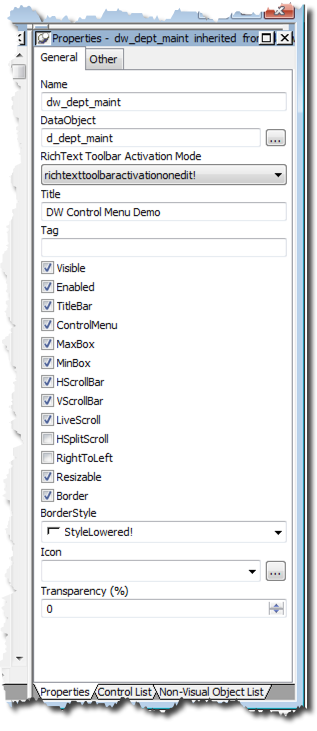
Perhaps you’ve enabled the titlebar and control menu of a DataWindow control.  You may even want the users to be able to minimize/maximize and reposition the control at runtime.

DataWindow Control Properties

Now you’d like to trap when the user interacts with the control in this fashion in order to execute some logic when they do. Perhaps you’d like to know when/if the user closes the DataWindow control.

Read more

The dwSyntax Tool


Thank you Sandy Barletta!

Just after the earth began to cool (I think it was in the PB3 time frame), I discovered the DWSyntax tool created by Sandy.

‘Round about that time I had been exporting DataWindow objects (this was before “edit source” folks) in order to get functional syntax for my dwModify() calls. Lo’ and behold I discovered this nifty GUI that would allow me to browse the dwDescribe(), dwModify(), SyntaxFromSQL() argument syntax for any DataWindow item or for the DataWindow object itself.

Fast forward to the present day. Let’s say you need to change the expression of a computed field at runtime, much as I illustrated in another tip on dynamically “creating” DataWindow groups.

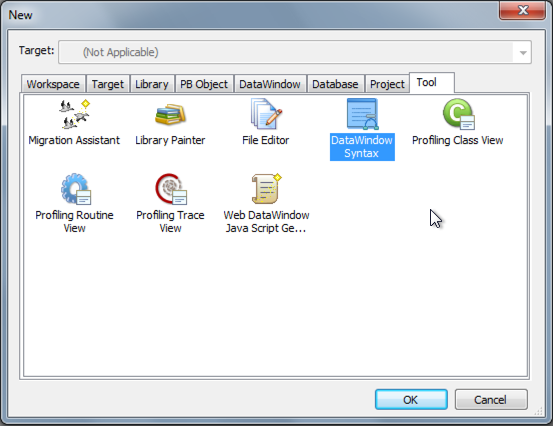
From the PowerBuilder IDE, open the “New” dialogue. Select the “Tool” tabpage, and then select the “DataWindow Syntax” item.

Image


Read more

Dynamic Runtime DataWindow Group Creation


Here’s a DataWindow tip…and a half.

Unless you want to dynamically build a DataWindow object from scratch at runtime (it’s do-able…but quite involved), there’s no direct way to create a group for a DataWindow object in an ad hoc manner. Here’s a workaround.

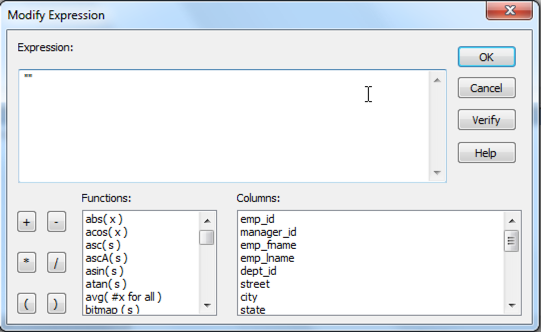
First, insert a computed field in an extant DataWindow object and give it an expression that’s an empty string. For the sake of this tip the computed field’s name will be “dynamicgroup”.

image


Read more

Updating the Datawindow Object Definition


I'm doing some work on an application to aid in the mass update of various datawindow attributes. It's not rocket science since you are dealing with a series of text files and doing some basic 'find and replace' operations. However, if you have ever worked on a project which has been around for a while you will notice that datawindows do not get 'migrated' when you upgrade to a newer version of PowerBuilder; the export syntax remains at the version in which the thing was last modified and saved.

Now you might think that using the LibraryExport and LibraryImport methods will do the trick but you would be mistaken. A newly imported datawindow object keeps the same version as when it was exported.

To accomplish the task you need to use the datawindow CREATE method.

Read more

Find Articles by Tag

SnapDevelop Debug .NET Assembly JSONGenerator Database Table Schema Bug Icon SOAP PDFlib ActiveX Mobile PBDOM Graph File SqlModelMapper Event PostgreSQL ODBC driver Design Error JSON Testing PBNI Elevate Conference Menu Azure Service Migration iOS Platform COM Outlook Authorization Database Table Data Automated Testing Sort Interface Windows 10 Icons Text TortoiseGit Filter Database Painter TFS Transaction Validation CI/CD Android Deployment Database Object Export Export JSON PowerServer Web Data Branch & Merge XML Encryption Window MessageBox PowerServer Mobile Expression Database Profile Encoding TreeView DataType OAuth 2.0 SqlExecutor Open Source SnapObjects Jenkins NativePDF License REST DragDrop Source Code Variable SDK UI Trial API UI Themes Import JSON CoderObject 32-bit OrcaScript Charts ODBC Windows OS PowerBuilder (Appeon) WebBrowser Class RibbonBar Installation SQL Debugging Array Repository JSONParser TLS/SSL Resize InfoMaker Database Connection Configuration External Functions RichTextEdit Control Syntax RibbonBar Builder DataWindow JSON RESTClient Import Linux OS Database Oracle DataWindow SQL Server OLE C# PDF Messagging BLOB CrypterObject 64-bit DLL Git Stored Procedure Event Handling Event Handler HTTPClient Source Control PBVM PostgreSQL Excel Visual Studio PowerBuilder Compiler Script DevOps Web API UI Modernization SVN PFC OAuth Performance Application Model PowerBuilder Authentication GhostScript Debugger .NET DataStore WinAPI IDE .NET Std Framework PowerScript (PS) Web Service Proxy Database Table