


Independent PowerServer Project Analyzer

Independent PowerServer Project Analyzer
A PowerBuilder desktop application that discovers local PowerServer instances, associates them with their generated projects, checks real endpoints, and presents an executive diagnosis without being integrated into or modifying the application under inspection.
Demo: Demo_PS_Session_Recovery · Implementation: Luis Avilan · PowerBuilder 2025 R2
Executive summary
The lab is a native desktop application. It is not a page inside the PowerServer application, it does not run inside the inspected project, and it does not share its session. It works as an external inspection tool: it observes local processes and listening ports, identifies PowerServer-generated solutions, reads their configuration files, and verifies through HTTP whether the Web API and published application are available.
The design is not coupled to a specific application. It can analyze any local PowerServer project that preserves the expected structure and publishes accessible endpoints. When several ServerAPIs instances are running, the user can select which one to analyze. Each option identifies the project, URL, published application, PID, and actual port.
The problem it solves
During PowerServer development, it is common to close PowerBuilder, close the client application, or lose sight of the console that started Kestrel. However, ServerAPIs.exe may continue running in the background. The opposite situation also occurs: the generated project folder and its configuration still exist, but the API is no longer running.
The demo therefore separates three concepts that must not be confused:
| Concept | What is verified | Possible result |
|---|---|---|
| Project structure | Presence of Server.json, ServerAPIs.csproj, AppModels, and Applications.json. |
VALIDATED or invalid. |
| Active Web API | Real response from /health-ui/. |
ONLINE or OFFLINE. |
| Published application | Real response from the application URL. | Published or unavailable. |
Overall architecture
Main demo components
| Object or file | Technical responsibility |
|---|---|
demo_ps_session_recovery.sra |
Initializes the native application and opens w_analizador_powerserver. |
w_analizador_powerserver |
Coordinates selection, analysis, health checks, visual status, evidence log, and WebBrowser output. |
nvo_descubridor_powerserver |
Runs discovery, loads tab-separated results, and exposes project, URL, application, PID, port, and HTTP status. |
descubrir_powerserver.ps1 |
Queries Windows processes and TCP connections, identifies ServerAPIs, and tests real endpoints. |
nvo_analizador_proyecto_powerserver |
Validates structure, reads Applications.json, extracts configuration, and performs HTTP checks. |
nvo_generador_informe_html_powerserver |
Transforms technical results into a safe, self-contained HTML document. |
w_laboratorio_recuperacion_sesion |
Preserves compatibility with the former window name and redirects to the real analyzer. |
analizador_powerserver.ini |
Stores a manual configuration for direct analysis or fallback use. |
Role of descubrir_powerserver.ps1
descubrir_powerserver.ps1 is actively used and is responsible for automatic discovery. PowerBuilder alone does not conveniently expose the complete relationship among TCP sockets, Windows processes, command lines, and physical ServerAPIs paths. The script acts as an adapter between operating-system information and nvo_descubridor_powerserver.
How it is executed
nvo_descubridor_powerserver searches for the script in the current directory, src, and bin. It then defines the temporary output file and runs PowerShell invisibly, waiting for completion:
powershell.exe -NoProfile -ExecutionPolicy Bypass
-File "descubrir_powerserver.ps1"
-ArchivoSalida "powerserver_detectados.tmp"
The required ArchivoSalida parameter defines where the detected inventory is written. Execution neither modifies the inspected project nor starts or stops any server.
Internal script functions
| Function | Responsibility |
|---|---|
Obtener-RutaProyecto |
Examines the executable path and process command line to locate the project root preceding ServerAPIs. |
Obtener-ArchivoAplicaciones |
Searches for Applications.json under ServerAPIs\AppConfig and compiled output folders below ServerAPIs\bin. |
Obtener-Aplicaciones |
Reads the JSON document and returns the keys configured inside the Applications node. |
Probar-Endpoint |
Tests HTTP and HTTPS against /health-ui/, using a three-second timeout, and accepts status codes from 200 through 399. |
Output produced by the script
For every published application belonging to an active instance, the script writes one line containing seven tab-separated fields:
Label | Project path | Base URL | Application | PID | Port | HTTP statusLines are sorted, duplicates are removed, and the file is written as UTF-8 without a BOM. When one instance publishes several applications, an independent option is generated for each one. If /health-ui/ does not respond successfully, the instance is not reported as active.
Passing the result back to PowerBuilder
After PowerShell finishes, nvo_descubridor_powerserver.of_cargar_resultados reads powerserver_detectados.tmp and distributes the seven fields into arrays. The window uses those arrays to populate the instance selector and keep project, URL, application, PID, port, and HTTP status synchronized.
How PowerServer discovery works
1. Enumerating listening ports
The script uses Get-NetTCPConnection -State Listen. Each connection supplies a local port and its owning PID.
$conexiones = Get-NetTCPConnection -State Listen |
Sort-Object OwningProcess, LocalPort -Unique
2. Correlating the PID with a process
For each socket, the script queries Win32_Process. Processing continues only when the process name, executable path, or command line identifies ServerAPIs. This prevents unrelated local web servers from being reported as PowerServer.
3. Resolving the generated project path
A regular expression extracts the folder preceding \ServerAPIs from the executable path or command line. This associates ServerAPIs.exe with the actual PowerServer project path that started it.
4. Reading published applications
The script searches for Applications.json under both ServerAPIs\AppConfig and compiled folders below ServerAPIs\bin. Keys under Applications become selectable entries. If one instance publishes several applications, each application is listed independently.
5. Requiring a real HTTP response
An instance is added to the active list only when /health-ui/ returns a status code from 200 through 399. Both HTTP and HTTPS are tested. Tab-separated output is written as UTF-8 without a BOM so PowerBuilder can read it without encoding artifacts.
How PowerBuilder consumes discovery results
nvo_descubridor_powerserver launches PowerShell invisibly through WScript.Shell. It then reads powerserver_detectados.tmp, separates each line, and stores parallel arrays containing the actual values.
is_etiquetas[ii_cantidad] = of_obtener_campo(ls_linea, 1)
is_rutas[ii_cantidad] = of_obtener_campo(ls_linea, 2)
is_urls[ii_cantidad] = of_obtener_campo(ls_linea, 3)
is_aplicaciones[ii_cantidad] = of_obtener_campo(ls_linea, 4)
is_procesos[ii_cantidad] = of_obtener_campo(ls_linea, 5)
is_puertos[ii_cantidad] = of_obtener_campo(ls_linea, 6)
is_codigos[ii_cantidad] = of_obtener_campo(ls_linea, 7)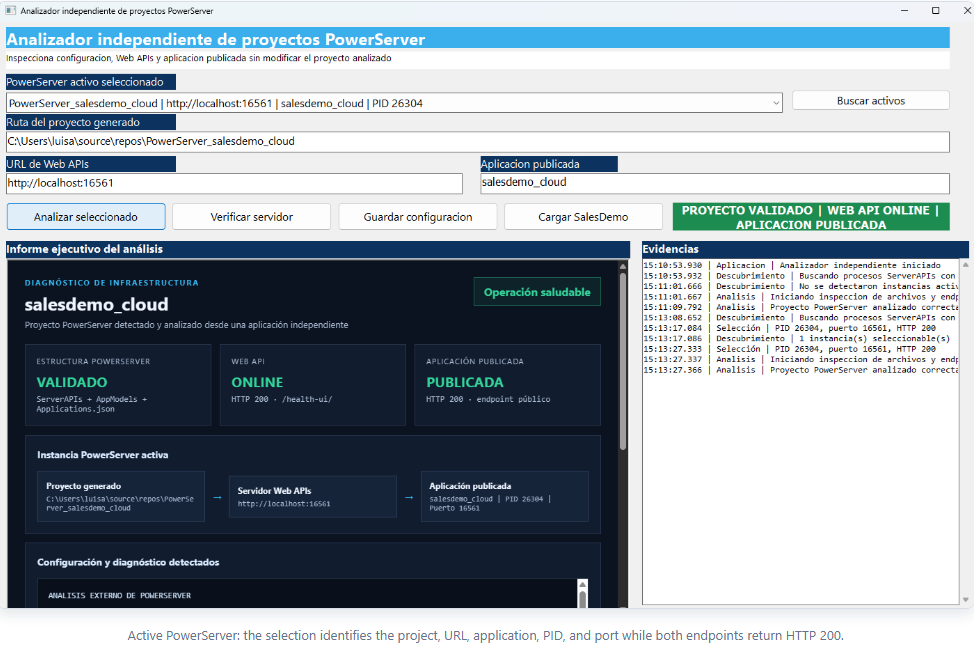
Analyzing PowerServer configuration
nvo_analizador_proyecto_powerserver combines physical validation with JSON parsing. After locating Applications.json, it uses JSONParser to extract:
- PowerServer application name.
- Session timeout.
- Request timeout.
- The cache mapped to
SQLCA. - Connection profile and cache.
- Database type.
- Database name, host, and port.
- Security options stored in the JSON configuration.
The retrieved values depend on each project. The report can display the database type, database name, server, port, connection cache, profile, and security options configured for the selected application.
HTTP checks and stale-status prevention
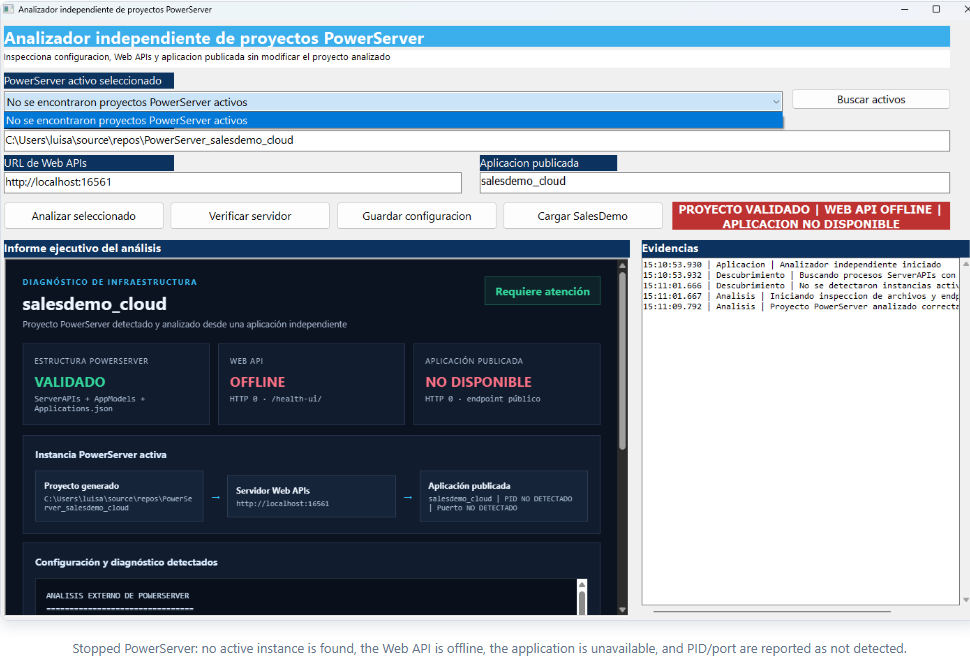
The analyzer resets each status and HTTP code before issuing a request. If the call fails, the code remains zero and the report immediately changes to offline.
il_codigo_http = 0
is_estado_webapi = "OFFLINE"
li_resultado = lnv_http.SendRequest("GET", is_url_webapi + "/health-ui/")
The same rule is applied to the published application. A previous HTTP 200 can therefore never remain visible after Kestrel has stopped.
Desktop application versus PowerServer application
| Desktop analyzer | Inspected PowerServer project |
|---|---|
Native demo_ps_session_recovery.exe executable. |
Generated .NET solution containing ServerAPIs. |
| Does not need to be converted into a PowerServer application. | Publishes Web APIs and one or more web applications. |
| Reads local processes, ports, and files. | Handles HTTP requests and data access. |
| Does not reuse the inspected application's sessions. | Owns and manages its PowerServer sessions. |
| Does not modify the target project. | Continues running independently. |
The executive HTML report
The original text report is preserved as technical evidence, but it is embedded in an HTML document produced by nvo_generador_informe_html_powerserver. The window loads it through wb_reporte.NavigateToString(ls_html).
The report contains:
- An overall health banner.
- Cards for project structure, Web API, and published application.
- HTTP status codes and tested endpoints.
- A project → server → application path.
- The real process PID and listening port.
- Full configuration in a scrollable technical panel.
- Report generation timestamp.
Dynamic values are HTML-encoded before insertion so paths, messages, or configuration content cannot break the document structure.
Complete scenario with a PowerServer application
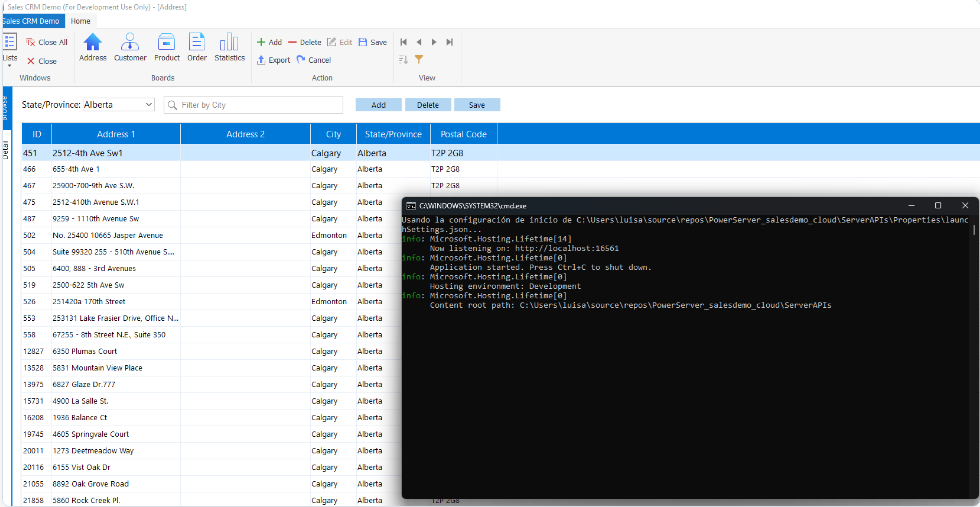
This image highlights the distinction between the PowerServer client and server. The Address screen consumes the published application while ServerAPIs continues as a separate process. Closing only the client or the PowerBuilder IDE does not guarantee that the API has stopped.
Step-by-step demo instructions
Preparation
- Keep the executable,
analizador_powerserver.ini, anddescubrir_powerserver.ps1together in thebinfolder. - Verify that local PowerShell scripts can run.
- Have at least one PowerServer-generated project available on the machine.
Test 1: no active PowerServer instance
- Stop every
ServerAPIs.exeprocess associated with the test project. - Run
bin\demo_ps_session_recovery.exe. - Confirm that the selector reports no active PowerServer projects.
- Notice that the project may remain structurally validated when its folder exists.
- Confirm
WEB API OFFLINE, unavailable application, HTTP 0, and no detected PID.
Test 2: start PowerServer
- Start
ServerAPIsfrom PowerBuilder, Visual Studio,dotnet run, or the generated executable. - Wait for Kestrel's
Now listening onmessage. - Click Buscar activos (Search active instances).
- Select the desired instance when more than one is available.
- Click Analizar seleccionado (Analyze selected).
- Confirm the project, URL, application, PID, and port.
- Verify that the cards report a validated project, online Web API, and published application.
- Scroll through the WebBrowser report to inspect the detected configuration.
Test 3: stop the API while the analyzer remains open
- Record the PID displayed by the analyzer.
- Stop it from Task Manager, the server console with Ctrl+C, or PowerShell:
Stop-Process -Id <PID>- Click Buscar activos.
- Click Analizar seleccionado or Verificar servidor.
- Confirm that statuses change to offline and HTTP codes return to zero.
Test 4: multiple instances
- Start two PowerServer solutions on different ports.
- Click Buscar activos.
- Verify that the selector contains one entry per project and application.
- Select one entry and analyze it.
- Switch to another entry and repeat; project path, URL, PID, port, and results must change together.
Expected results
| Condition | Selector | HTTP status | Report |
|---|---|---|---|
| Missing project | No instance | HTTP 0 | Invalid structure and offline server. |
| Existing project, stopped API | No active instance | HTTP 0 | Validated project with offline API. |
| Active API and available application | Project, URL, application, and PID | HTTP 2xx/3xx | Healthy operation. |
| Active API, incorrect application path | Detected instance | Valid health check; application unavailable | Online Web API with no application at that URL. |
Current limitations
- Automatic discovery targets local Windows instances.
- Correlation requires the process name, path, or command line to identify
ServerAPIs. - Remote servers can be analyzed manually by URL and accessible path, but they cannot be discovered through local processes.
- The health check confirms HTTP availability; it does not replace functional testing of every API.
- The presence of
Applications.jsondoes not prove that credentials, database access, or permissions are correct. - Internal sessions are not queried without an authorized administrative API.
Production considerations
- Sign or otherwise control the PowerShell script distributed with the tool.
- Do not disable HTTPS certificate validation in production.
- Mask secrets and sensitive connection values before displaying or exporting configuration.
- Use short request timeouts to avoid blocking the desktop interface.
- Add authentication before integrating administrative endpoints.
- Record timestamp, machine, user, PID, port, URL, and HTTP status for every diagnosis.
- Clearly distinguish a valid project, a running server, and a functional application.
ServerAPIs.exe was stopped.Conclusion
This demo shows that a PowerBuilder desktop application can operate as a diagnostic console for PowerServer projects without becoming part of them. It combines native PowerBuilder features, WebBrowser/WebView2, JSONParser, HTTPClient, Windows process inspection, and PowerShell to build a trustworthy view of a local PowerServer installation.
Its main value is replacing assumptions with separate pieces of evidence. Project files, process, port, Web API, published application, and configuration are validated independently. The resulting tool can be reused for development, support, availability testing, and analysis of multiple PowerServer solutions.
Luis Avilan
This message has an attachment file.
Please log in or register to see it.
Please Log in or Create an account to join the conversation.