


Hybrid Calendar: PowerScript controls a modern user interface

Hybrid Calendar: PowerScript controls a modern user interface
A portable demo that combines local events, offline work, and optional Google Calendar synchronization while PowerBuilder remains in charge of business rules, authentication, and user actions
The HTML interface does not replace PowerBuilder. WebView2 displays the calendar and captures interaction; PowerScript receives JSON messages, runs the application logic, and sends confirmed results back to the scheduler.
What the project demonstrates
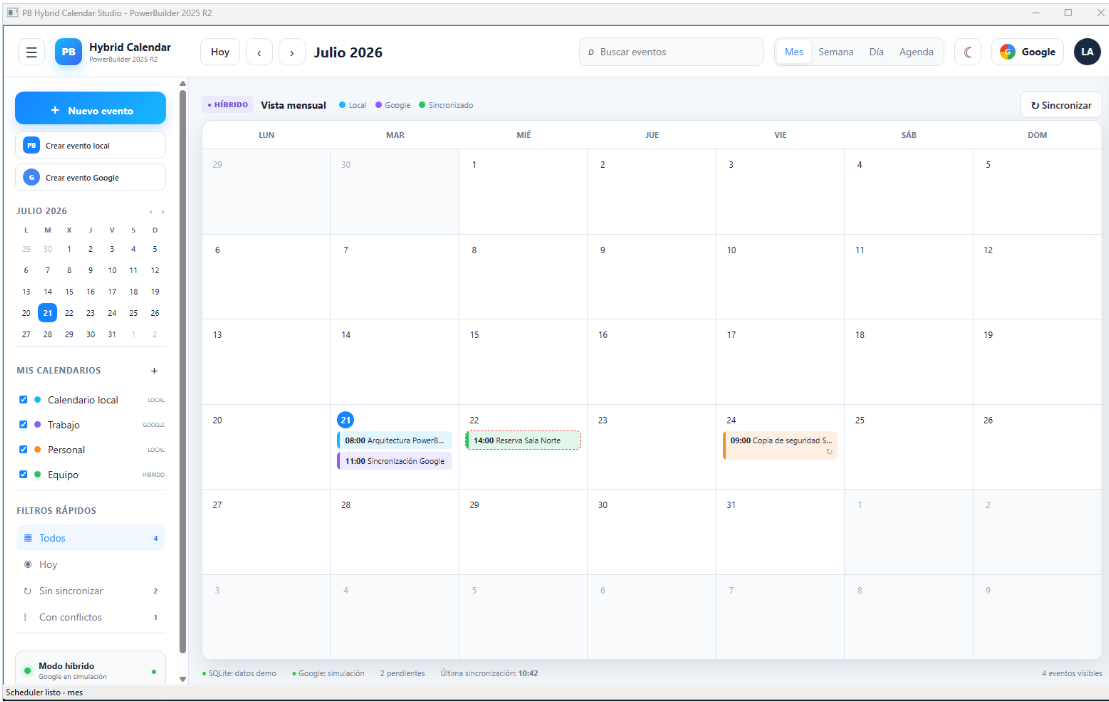
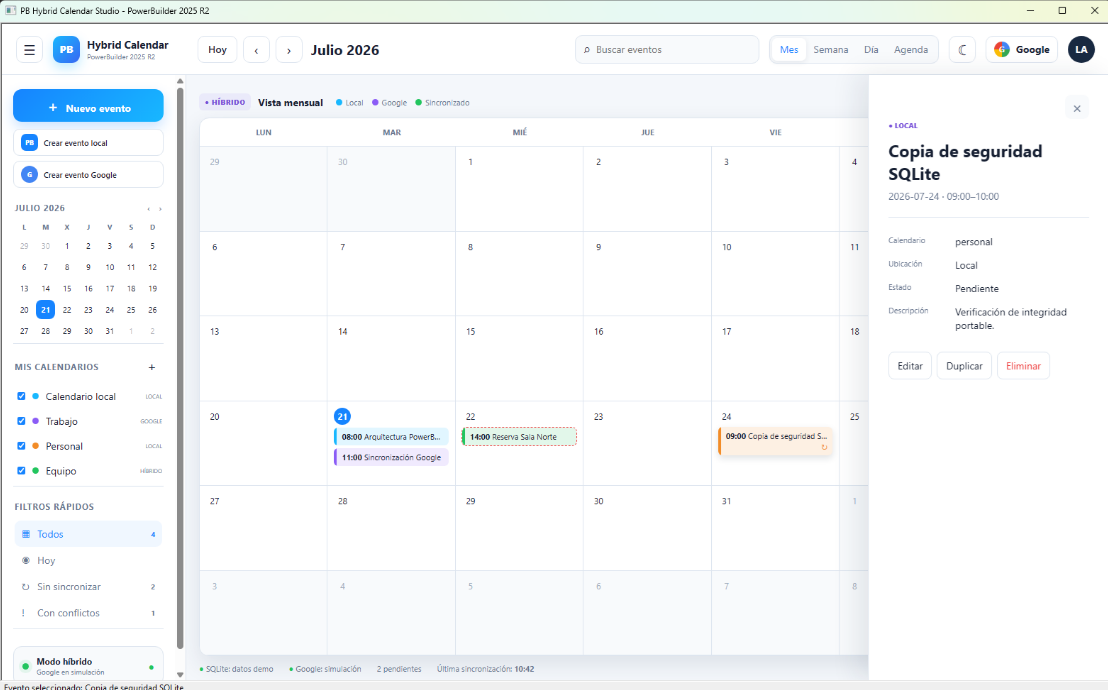
PB Hybrid Calendar Studio provides month, week, day, and agenda views inside the WebView2-based WebBrowser control. Users can search, filter, create, edit, duplicate, and delete events, distinguish their source through color, and open a contextual detail panel without leaving the main PowerBuilder window.
The demo supports two operating paths. Local events can be stored in a portable SQLite database and remain available without an Internet connection. When connected, nvo_google_calendario uses OAuth 2.0 and Google Calendar API v3 to read and modify the primary calendar. The hybrid view combines both sources and exposes pending, synchronized, and conflict states.
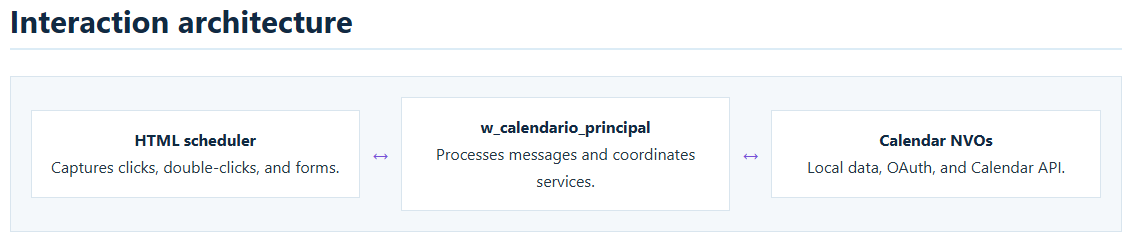
| Component | Responsibility in the demo |
|---|---|
w_calendario_principal |
Opens the local scheduler, receives WebMessageReceived, parses JSON, and calls short PowerScript functions. |
nvo_gestor_calendario |
Resolves the portable path, prepares local events, and builds the script that transfers data to WebView2. |
nvo_google_calendario |
Stores OAuth settings, obtains tokens, retrieves events, and performs create, update, duplicate, and delete operations in Google. |
index.html |
Defines the scheduler, side panels, editors, and Google configuration form from the portable root. |
scheduler.js |
Renders the views, keeps visual state, and posts messages to PowerBuilder. |
From the calendar to PowerBuilder
Each scheduler card has an ID. A single click opens the detail panel; a double-click calls mostrarEventoPowerBuilder, which posts the title and time through window.chrome.webview.postMessage.
function mostrarEventoPowerBuilder(id) {
const eventItem = estado.eventos.find(item => item.id === id);
if (!eventItem) return;
enviarPB({
evento: "mostrarEventoPowerBuilder",
id: eventItem.id,
titulo: eventItem.titulo,
hora: eventItem.hora
});
}
The window's webmessagereceived event passes webmessage to of_procesar_mensaje. PowerBuilder uses JsonParser, recognizes the contract, and delegates the result to of_mostrar_evento_calendario.
Case "mostrarEventoPowerBuilder"
ls_valor = lnv_json.GetItemString(ll_raiz, "titulo")
ls_hora = lnv_json.GetItemString(ll_raiz, "hora")
of_mostrar_evento_calendario(ls_valor, ls_hora)
The function builds a short message and opens a native MessageBox. This proves that a visual HTML action can trigger PowerBuilder windows, NVOs, transactions, DataWindows, or any other application service.
From PowerScript to the calendar
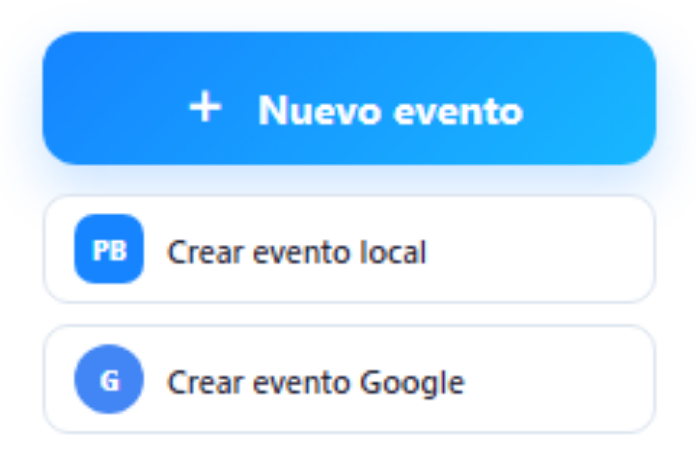
Communication also works in the opposite direction. The Crear evento local and Crear evento Google buttons send a command to the window. PowerBuilder generates a title containing the current time, creates the event contract, and runs JavaScript through EvaluateJavascriptAsync.
ls_titulo = of_generar_titulo_evento("LOCAL")
Return of_agregar_evento_web(
ls_titulo, "LOCAL", "local", "#18b8ff")
of_agregar_evento_web prepares the date, time, ID, source, color, and description. It then invokes window.calendarioPB.agregarEventoPowerBuilder(...). JavaScript adds the event, changes the visible date, and renders the calendar again.
agregarEventoGoogleCreado after Google returns the confirmed resource. This prevents a rejected event from appearing as synchronized.Creating a real Google Calendar event
of_crear_evento_google_powerbuilder checks inv_google.of_esta_conectado(). If no token is available, it displays a native warning and stops. When connected, PowerScript generates the title and nvo_google_calendario.of_crear_evento_google builds RFC 3339 dates, a UTF-8 JSON payload, and an Events.insert request.
Edit, duplicate, and delete follow the same principle: the scheduler sends an intention; PowerBuilder performs PATCH, POST, or DELETE; and the visible state changes only after a successful response.
Local creation and editing
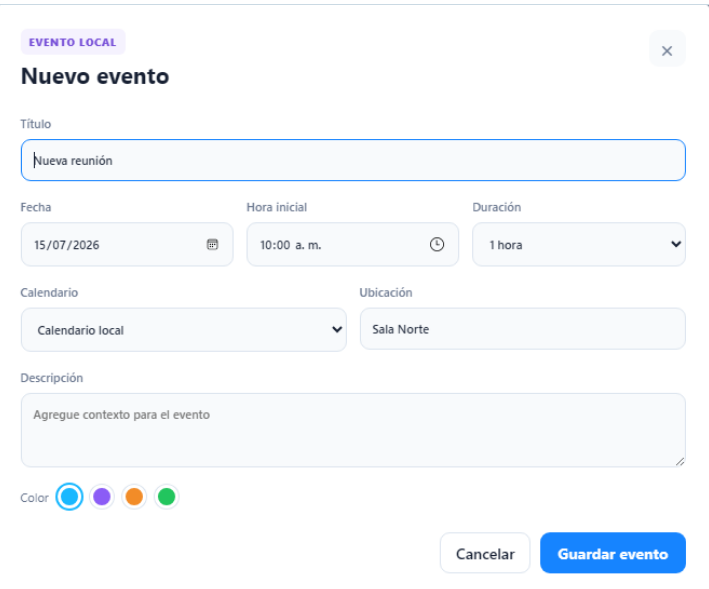
The web form collects the values, calculates the end time, and creates a contract whose source is LOCAL. In a complete installation this contract is persisted in SQLite and remains available offline. The Pendiente and Sincronizado states support an offline queue that can publish changes later.
SQLite keeps the demo portable: the database can travel as pb_hybrid_calendar.db in the application root without requiring a corporate server. PowerBuilder remains responsible for opening the database, validating transactions, and sending WebView2 only the JSON needed for the visible range.
Local
Works without Internet, uses SQLite, preserves private calendars, and allows immediate event creation and editing.
Uses OAuth 2.0, an access token, and Calendar API v3 while preserving remote IDs and confirmed responses.
Hybrid
Combines both sources, distinguishes colors and states, and provides the foundation for an offline synchronization queue.
How to obtain Google credentials
The connection requires an OAuth 2.0 client, not a Gmail password. The current Google Cloud process is:
- Create or select a project in Google Cloud Console.
- Open APIs & Services → Library, find Google Calendar API, and click Enable.
- Under Google Auth platform, configure Branding, Audience, and Data Access. For an external test, add the Google account used by the demo as a test user.
- Open Google Auth platform → Clients, click Create Client, and choose Desktop app.
- Copy the Client ID and Client Secret. Do not publish them or commit them to source control.
Official references: enable Google Workspace APIs, create OAuth credentials, and choose Google Calendar scopes.
Connecting the demo to Google
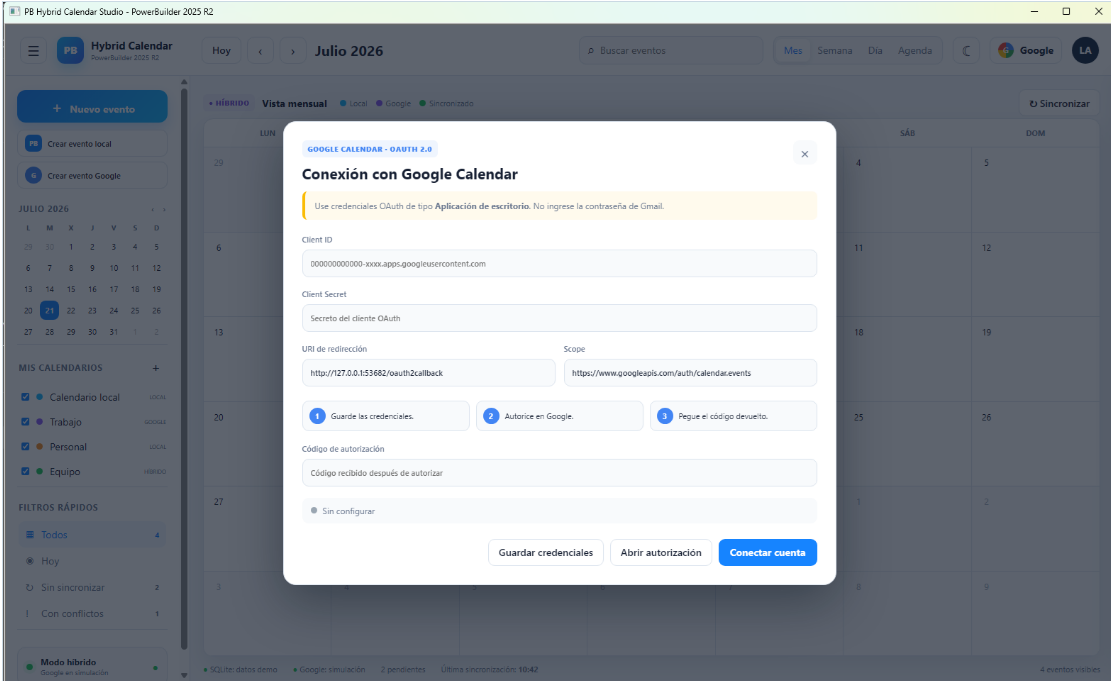
- Click the Google button in the top bar.
- Paste the Client ID and Client Secret. Keep the redirect URI shown by the demo and the
www.googleapis.com/auth/calendar.eventsscope. - Click Guardar credenciales. The NVO stores the portable configuration; the secret is not sent back to JavaScript when the form is reopened.
- Click Abrir autorización, select the account, and accept the requested permission.
- Paste the returned code or redirect URL into Código de autorización, then click Conectar cuenta.
- Finally, click Sincronizar. PowerBuilder retrieves the primary calendar and sends the JSON response to the scheduler.
Complete synchronization flow
| Action | WebView2 → PowerBuilder | PowerBuilder → WebView2 |
|---|---|---|
| Initial load | schedulerListo |
recibirDatos |
| Double-click | mostrarEventoPowerBuilder |
Native MessageBox |
| Create local | crearEventoLocalPowerBuilder |
agregarEventoPowerBuilder |
| Create Google | crearEventoGooglePowerBuilder |
agregarEventoGoogleCreado |
| Synchronize | sincronizacionSolicitada |
recibirEventosGoogle |
| Edit or delete | Contract containing ID and values | Calendar API confirmation or error |
How to test the demo
- Run the application and confirm that the monthly view displays local events.
- Click Crear evento local and verify that its title contains the time generated by PowerScript.
- Double-click the event and confirm that PowerBuilder displays its name and time in a
MessageBox. - Open an event with one click and test Edit, Duplicate, and Delete.
- Configure OAuth, connect a test account, and click Crear evento Google.
- Open Google Calendar and verify that the event exists in the primary calendar.
- Click Sincronizar and confirm that remote events are combined with local events.
Conclusion
PB Hybrid Calendar Studio demonstrates a practical and reusable integration. HTML, CSS, and JavaScript provide a fluid visual experience; PowerBuilder retains the business logic, security, persistence, and enterprise interoperability. Bidirectional communication turns every scheduler interaction into a possible PowerScript action and allows any PowerBuilder function to update the interface without reopening the window.
The result is a calendar that can begin as a fully local SQLite application and evolve into a hybrid Google Calendar experience without abandoning the architecture and capabilities of PowerBuilder 2025 R2.
Luis Avilan
This message has an attachment file.
Please log in or register to see it.
Please Log in or Create an account to join the conversation.