


AI No-Code Visual Builder with PowerBuilder, Ollama, and WebView2

AI No-Code Visual Builder with PowerBuilder, Ollama, and WebView2
A technical demo where PowerBuilder owns the interface model and WebView2 provides an interactive CSS Grid designer. Ollama assistance is optional and can be used to start from a more complete proposal.
AI is optional. Users can build the complete HTML manually with the palette and property inspector. When they want a richer initial idea, they can request one from Ollama and continue editing it visually. PowerBuilder always remains in control of the model.
What this demo builds
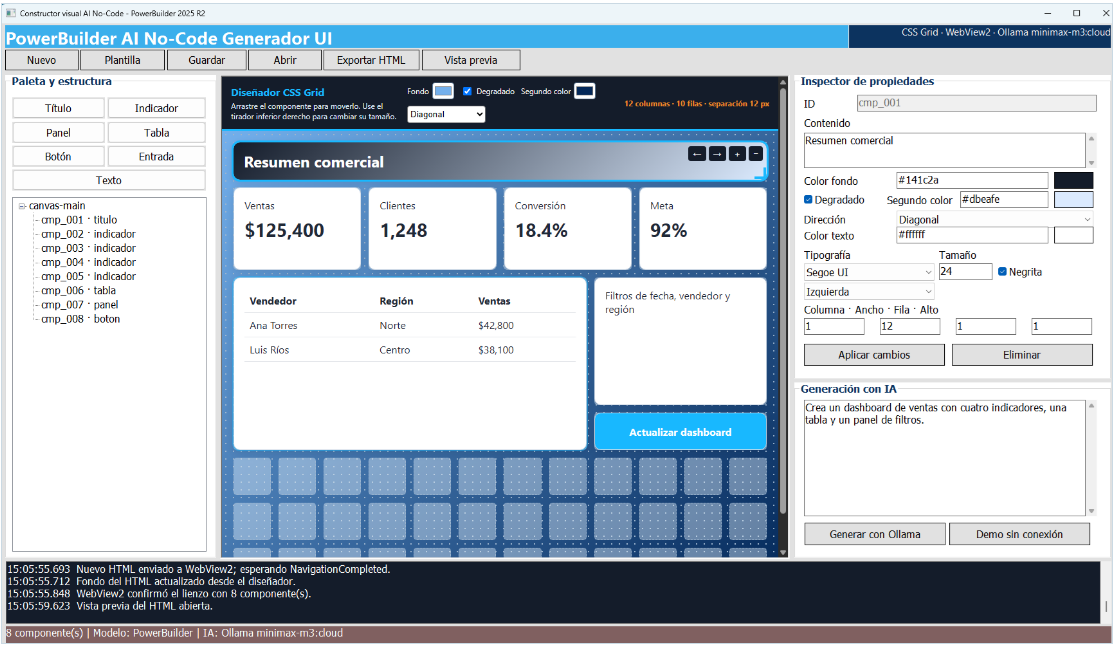
The project turns PowerBuilder 2025 R2 into a visual studio for producing HTML interfaces without manually writing the final document. Users can add headings, free text, indicators, panels, tables, buttons, and inputs; move them on a twelve-column grid; change size, typography, colors, and gradients; save the project; export HTML; and open a preview with formatted source code. All these operations work without connecting to an AI model.
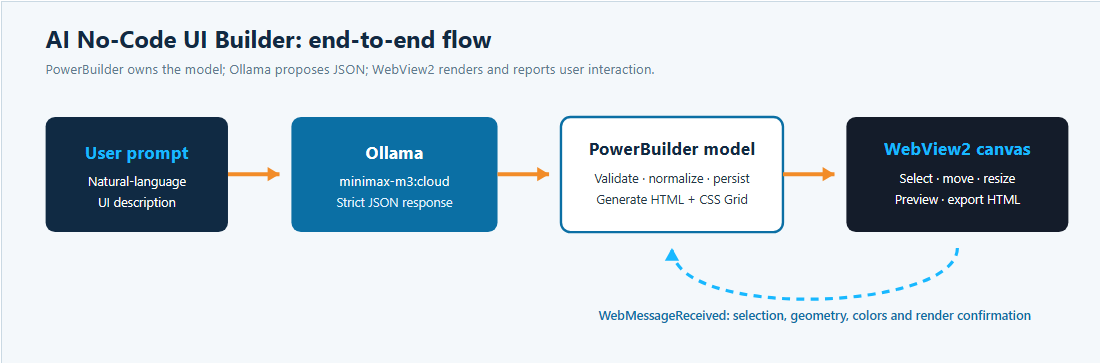
As an optional alternative, AI-assisted generation uses Ollama at localhost:11434/api/generate with the minimax-m3:cloud model. Users can describe a screen to receive a richer initial proposal. PowerBuilder validates the JSON contract, displays the result, and allows every component to be edited with the same manual tools.
Architecture: one authority and two collaborators
| Object | Responsibility |
|---|---|
w_constructor_ui_ai |
Coordinates the experience: palette, tree, inspector, prompt, WebView2 messages, preview, and AI generation. |
nvo_gestor_diseno_ui |
Acts as the source of truth. It stores components, grid, styles, and DataWindow content; validates JSON; and generates self-contained HTML. |
nvo_cliente_ollama |
Builds the contract, encodes the request as UTF-8, calls Ollama, and extracts the JSON returned by minimax-m3:cloud. |
w_vista_previa_html |
Displays the final result beside formatted HTML and a PowerScript example for integration and events. |
w_solicitar_datawindow |
Requests a DataObject name when a table will be populated from a DataWindow. |
Environment setup
- PowerBuilder 2025 R2 and Microsoft Edge WebView2 Runtime.
- Optional: Ollama installed, running, and authorized to use
minimax-m3:cloudwhen AI-assisted generation is desired. - Optional: command-line model verification with
ollama run minimax-m3:cloud. - The
Demo_Generador_html_pb.pbwworkspace opened with its main PBL. - To test
dw_demo, a validSQLCAconfiguration followed byCONNECT USING SQLCA;.
SQLCA.SQLCode = 0 after CONNECT USING SQLCA;.Step 1: turn a description into a JSON contract
This step runs only when the user chooses Generate with Ollama. It can be skipped entirely when building the HTML manually from the component palette.
nvo_cliente_ollama.of_construir_prompt does not ask for unrestricted HTML. It requires file_type, schema_version, project, canvas, and components. Every component declares a type, text, colors, gradient settings, and CSS Grid position. Allowed types are titulo, texto, indicador, panel, tabla, boton, and entrada.
This constraint reduces ambiguous responses and prevents the model from injecting HTML, JavaScript, credentials, paths, or URLs. The result is a declarative structure that PowerBuilder can inspect before rendering.
Step 2: send UTF-8 to Ollama
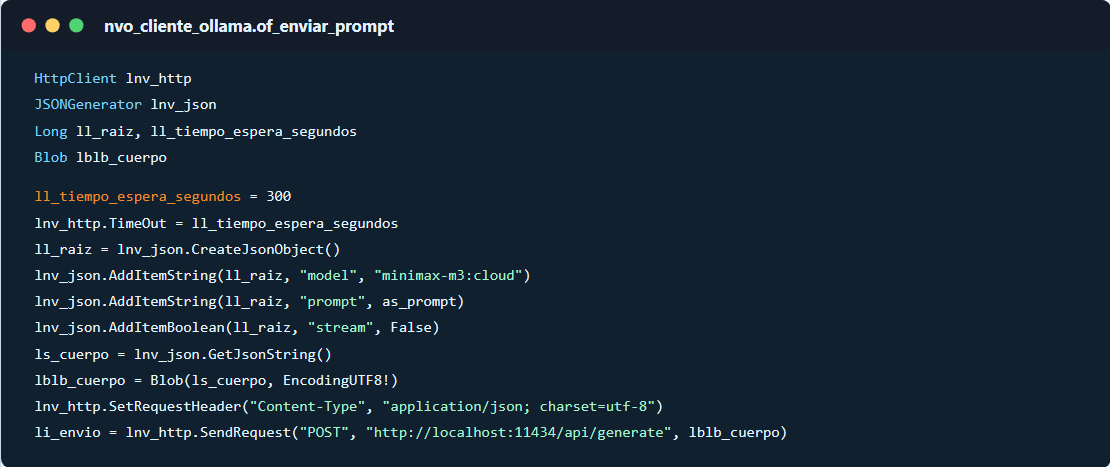
The request sets stream=false, so PowerBuilder waits for a complete response. It then validates the HTTP status, parses the body with JSONParser, and reads the response property. Finally, of_limpiar_json extracts the first complete JSON object.
minimax-m3:cloud. Ollama provides the access layer and a stable HTTP contract for PowerBuilder.Step 3: validate, normalize, and generate HTML
nvo_gestor_diseno_ui.of_cargar_json verifies the file type and schema version. It also normalizes optional or null values such as colors, gradient direction, typography, alignment, and grid coordinates. Geometry is constrained to the available twelve columns.
Once the model is accepted, of_generar_html creates a self-contained document with CSS, grid layout, components, and editing JavaScript. Preview mode removes design tools; editing mode adds guide cells, selection, movement, and resizing.
Step 4: synchronize PowerBuilder and WebView2
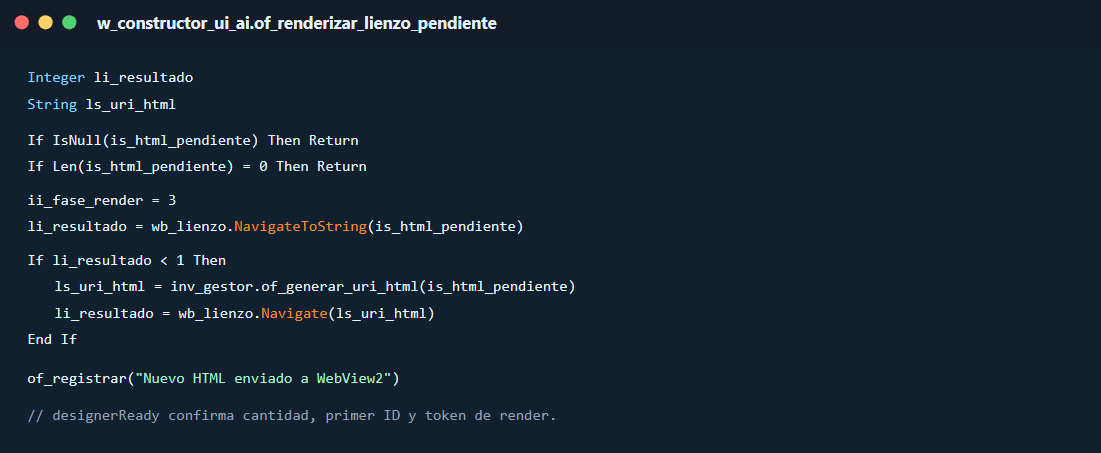
Every render inserts a unique token into <body>. When the page is ready, JavaScript sends designerReady with that token, the component count, and the first ID. PowerBuilder reports “Design applied” only when all three values match the current model; otherwise, it submits the document again.
The reverse channel uses WebMessageReceived. Messages such as componentSelected, componentMoved, componentResized, gridAreaCreated, and canvasStyleChanged are validated and translated into short calls to the manager. HTML is then regenerated from the central model.
How the canvas was built and how its components are managed
The canvas is not a separate drawing control. nvo_gestor_diseno_ui.of_generar_estilos creates an HTML element named canvas-main and configures it as a twelve-column CSS Grid. Rows are 58 pixels high, the gap is 12 pixels, and an absolute rejilla-guia layer draws the cells used during editing.
"#canvas-main{position:relative;display:grid;" + &
"grid-template-columns:repeat(12,minmax(0,1fr));" + &
"grid-auto-rows:58px;gap:12px;min-height:720px;padding:18px;}" + &
".rejilla-guia{position:absolute;inset:18px;display:grid;" + &
"grid-template-columns:repeat(12,minmax(0,1fr));" + &
"grid-template-rows:repeat(10,58px);gap:12px;}" + &
".pb-componente{position:relative;z-index:3;cursor:move;}"
Each component receives data-col, data-row, data-span, and data-rowspan attributes. These values connect the visual element to the column, row, width, and height properties stored by PowerBuilder. The tirador-redimension handle switches the current operation from move to resize.
document.addEventListener('mousedown', e => {
const c = e.target.closest('.pb-componente');
if (!c || e.target.closest('button')) return;
seleccionar(c);
operacion = {
c,
modo: e.target.classList.contains('tirador-redimension') ? 'resize' : 'move',
col: +c.dataset.col, row: +c.dataset.row,
ancho: +c.dataset.span, alto: +c.dataset.rowspan
};
});

enviar(operacion.modo === 'move' ? 'componentMoved' : 'componentResized', {
component_id: c.id,
column: +c.dataset.col, column_span: +c.dataset.span,
row: +c.dataset.row, row_span: +c.dataset.rowspan
});
JavaScript updates the on-screen position while the mouse moves. On release, it sends the final geometry to PowerBuilder. The window parses the message, reads the four grid values, and delegates the update to a short helper. The manager constrains the geometry, and of_refrescar_lienzo rebuilds the document.
Case "componentMoved", "componentResized"
ll_columna = Long(lnv_json.GetItemNumber(ll_payload, "column"))
ll_ancho = Long(lnv_json.GetItemNumber(ll_payload, "column_span"))
ll_fila = Long(lnv_json.GetItemNumber(ll_payload, "row"))
ll_alto = Long(lnv_json.GetItemNumber(ll_payload, "row_span"))
of_actualizar_cuadricula_desde_web( &
ls_id, ll_columna, ll_ancho, ll_fila, ll_alto)Step 5: design with the mouse and inspector
Visual grid
Dragging across cells creates a section. Components move while the mouse is held down and resize through the lower-right handle.
Complete styling
The inspector controls content, color swatches, gradients, second color, direction, font, size, bold, alignment, and geometry.
Document background
The top bar selects a flat color or gradient for the complete HTML document, including second color and direction.
Step 6: use a DataWindow as an HTML table
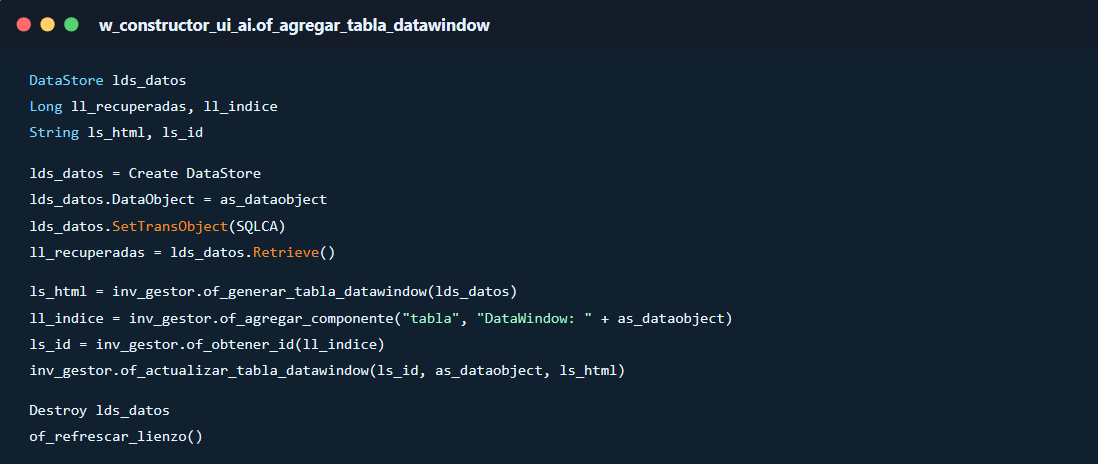
When a table is added, the demo asks whether it should use a DataWindow. If the answer is yes, it suggests dw_demo, creates a DataStore, assigns the DataObject, binds SQLCA, and executes Retrieve(). Visible columns and rows are converted into an HTML table stored in the model.
Step 7: preview, source code, and events
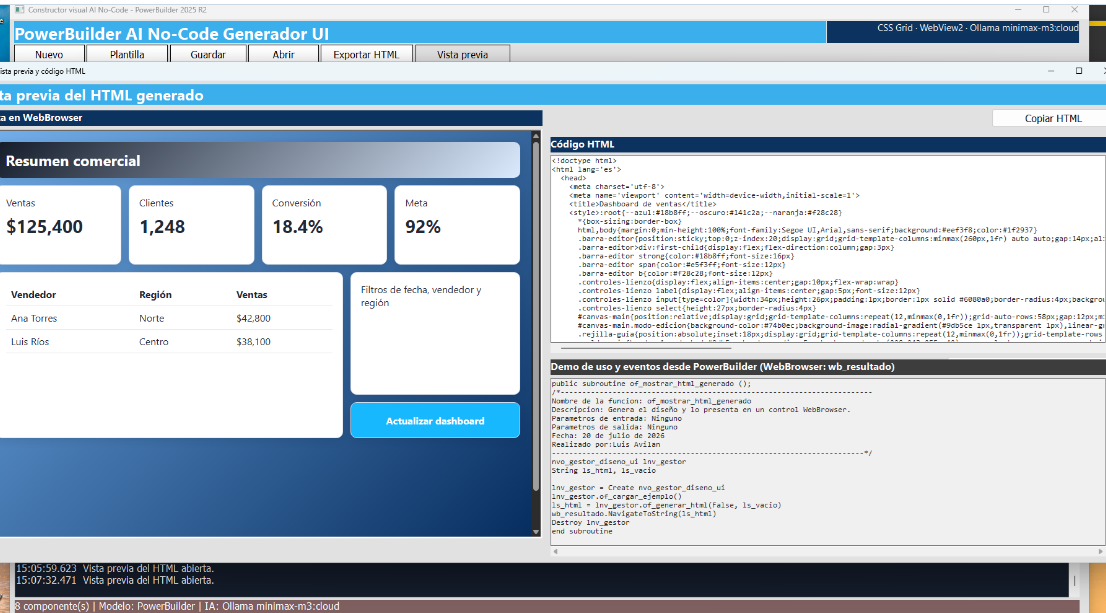
Generated buttons can post a message to PowerBuilder. w_vista_previa_html receives the event, parses its JSON, and displays a MessageBox. This demonstrates that an HTML interface is not isolated: its events can trigger window logic, NVO services, transactions, and DataWindows.
How to test the demo
- Run the project and choose New to start manually or Template to use the local example.
- Add components from the palette, select grid areas, and configure text, colors, gradients, and typography with the inspector.
- If an assisted proposal is desired, start Ollama, verify
minimax-m3:cloud, and enter: “Create an executive sales dashboard with four indicators, a table, filters, descriptive text, and a blue gradient background.” - Select Generate with Ollama and treat the result as a starting point rather than a final design.
- Select generated or manually created components, change their properties, and move them with the mouse.
- Add a table and test
dw_demowith a connected SQLCA. - Open Preview, test the HTML button, and inspect the PowerScript example.
- Save the JSON project or export the self-contained HTML, regardless of how it was created.
Technical decisions that keep the design reliable
- PowerBuilder—not WebView2 or AI—owns the model.
- The Ollama contract accepts only known components and controlled grid coordinates.
- Requests and files preserve accented and special characters through UTF-8.
- Render confirmation prevents false success when WebView2 still holds an older document.
- Manual design and the local template remain available when Ollama is not installed or cannot be reached.
- Responsibilities remain distributed across short functions and specialized NVOs.
Conclusion
This demo presents a practical path for modernizing a PowerBuilder application without abandoning its strengths. Users can build the complete document themselves with the palette, grid, and inspector. When they need inspiration or a more elaborate initial structure, Ollama and minimax-m3:cloud can translate intent into a visual proposal that remains fully editable.
The result is more than an HTML generator. It is a reusable architecture for adding generative AI to enterprise tools while keeping rules, data, traceability, and execution control inside PowerBuilder 2025 R2.
Luis Avilan
This message has an attachment file.
Please log in or register to see it.
Please Log in or Create an account to join the conversation.