


Hermes: an autonomous agent connected to PowerBuilder

Hermes: an autonomous agent connected to PowerBuilder
A technical demo where AI does more than converse: it observes the current DataWindow, selects tools, executes real PowerBuilder operations, evaluates their results, and decides what to do next.
Hermes demonstrates the difference between a chatbot and an agent: the model retains context, reasons about a goal, selects a capability published by PowerBuilder, receives the actual execution result, and can chain new decisions until the request is complete.
Introduction
Enterprise applications developed with PowerBuilder concentrate business processes, rules, and large volumes of information that are normally accessed through predefined screens and commands. Adding an artificial intelligence agent introduces a new interaction layer: the user describes the desired outcome in natural language, and the agent translates that intent into a controlled sequence of operations performed by the application.
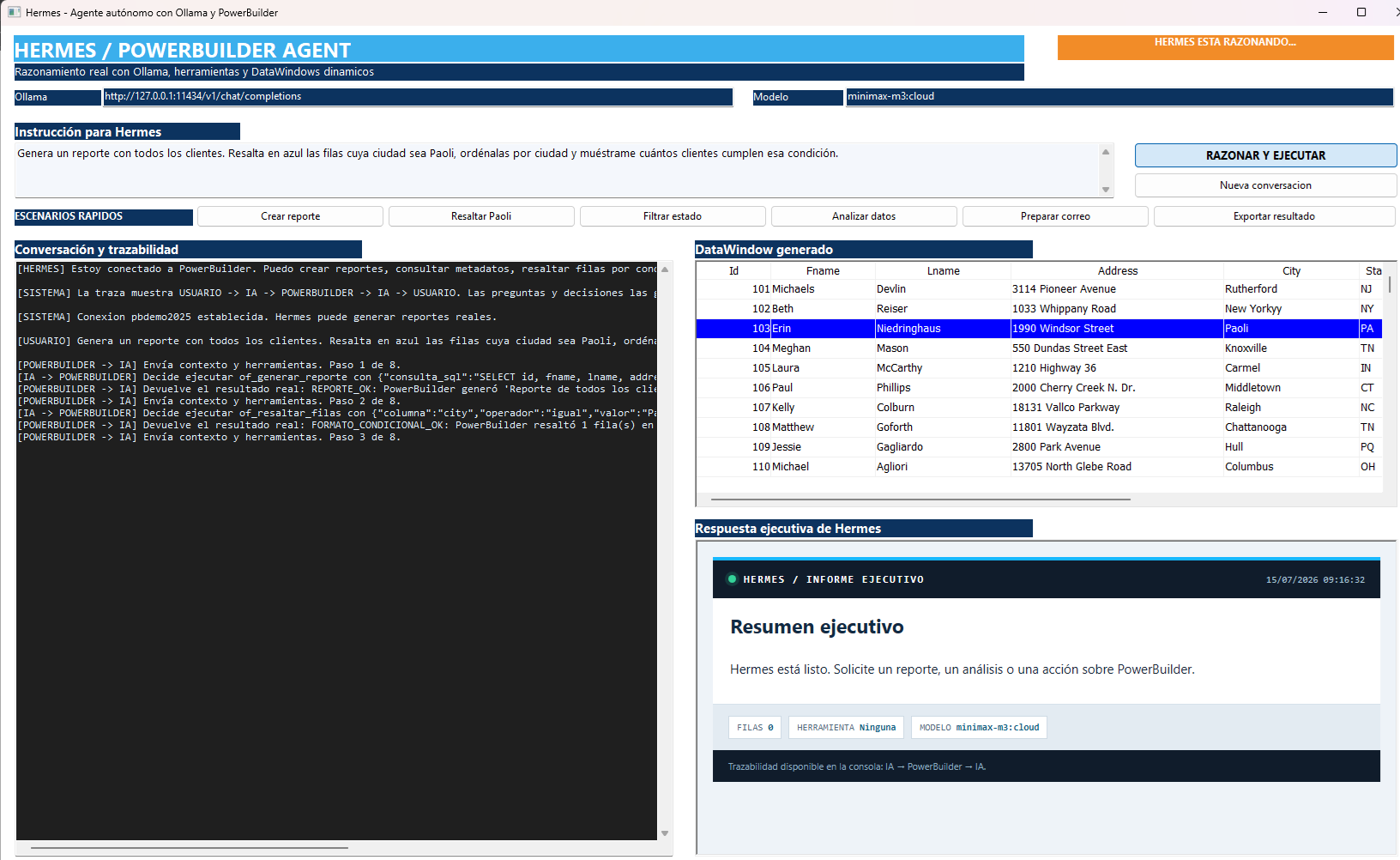
This demo introduces Hermes, an agent connected to PowerBuilder 2025 R2 through Ollama and the minimax-m3:cloud model. Its purpose is not to replace existing application logic, but to use it: Hermes obtains report context, selects tools published by PowerBuilder, evaluates each response, and decides what to do next. A single request can therefore generate a DataWindow, apply filters or conditional formatting, calculate indicators, produce an executive summary, export the result, and prepare an email while preserving human confirmation before it is sent.
Prerequisites and Hermes setup
Hermes is part of the PowerBuilder demo; it is not a separate service that must be installed as an additional application. Setting it up consists of preparing the environment, opening the project, and starting the agent's main window.
- PowerBuilder 2025 R2: required to open, run, or modify the project and its objects.
- Ollama: must be installed and running locally. The demo calls its OpenAI-compatible API at
127.0.0.1:11434/v1/chat/completions. - AI model: the Ollama account must have access to
minimax-m3:cloud. It can be started and verified from a command prompt withollama run minimax-m3:cloud. - PBDemoDB2025 database: the demo uses this sample database to query the
customertable and generate reports. A Windows ODBC data source namedpbdemo2025must be available, and its credentials must match the environment configuration. - Microsoft Edge and Gmail: required to test draft preparation, message composition, and automatic selection of the PDF report. The user always retains the final decision to click Send.
- Windows PowerShell: used to run the local helper that selects the PDF file in Gmail's attachment dialog.
To install the demo, extract the package, confirm that Ollama and the pbdemo2025 DSN are available, open Demo_hermes_agent_pb.pbw with PowerBuilder 2025 R2, and run the application. The salida_hermes folder is created automatically when Hermes needs to export a report, so it is not included in the distribution ZIP.
Three prompts for testing the demo
Generate a report with all customers. Highlight in blue the rows whose city is Paoli, sort them by city, and show me how many customers meet that condition.
Analyze the current report, identify the city with the most customers, filter the report to that city only, and generate an executive summary. If you need additional information, ask me before executing.
Prepare an email with the current report attached as a PDF. Write a professional executive summary in the body, ask me for the recipient if you do not have it, and leave Gmail completely prepared so I only need to review it and press Send.
For more detailed information and technical insights, see the article “Hermes: An Autonomous Agent Connected to PowerBuilder.”
This message has an attachment file.
Please log in or register to see it.
Last Edit: 2 months 1 week ago by Luis Avilan . Reason: mejorar
Please Log in or Create an account to join the conversation.