


SVG Icon Studio: Native Validation and Rendering of SVG Icons in PowerBuilder 20

SVG Icon Studio: Native Validation and Rendering of SVG Icons in PowerBuilder 2025 R2
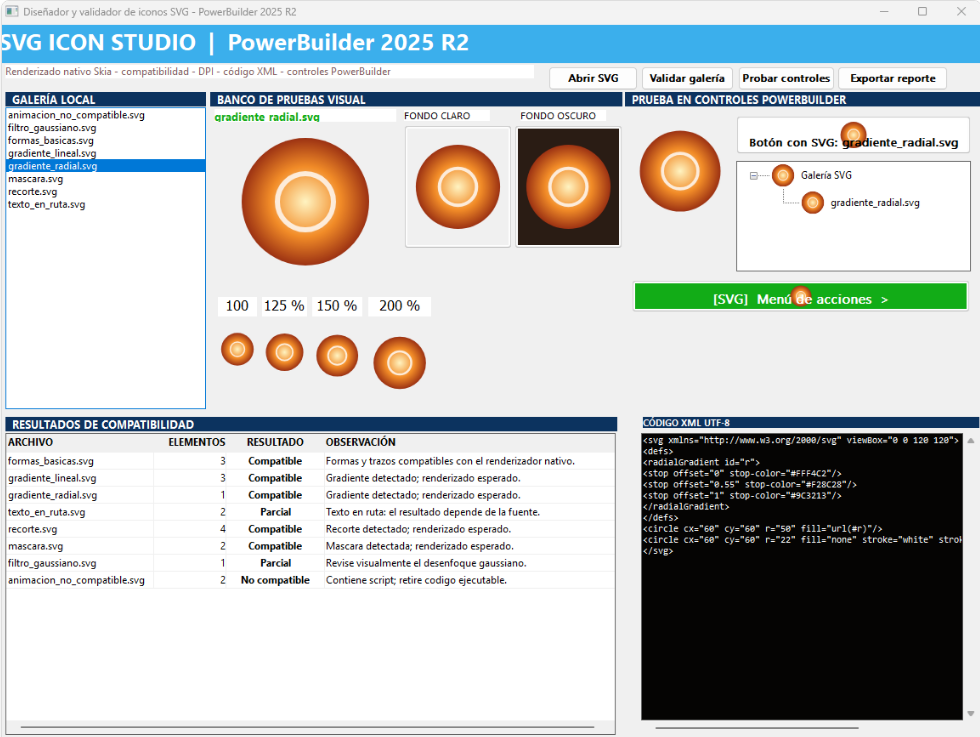
PowerBuilder 2025 R2 incorporates native support for scalable vector graphics (SVG) through the Skia rendering engine. This technical demo explores that support by presenting a complete visual studio: an SVG file gallery, preview on light and dark backgrounds, DPI scaling, compatibility validation, and direct testing on native Picture, PictureButton, and TreeView controls.
What is this demo about?
SVG Icon Studio is a portable application designed as a test bench to evaluate the native SVG rendering of PowerBuilder. Upon execution, it automatically generates eight representative SVG files—basic shapes, linear and radial gradients, text on a path, clipping, masking, Gaussian filter, and animation—and presents them in an organized visual environment where the developer can observe how they behave under different conditions.
The objective is not just to display images: the demo analyzes the XML code of each SVG, counts its graphic elements, and applies a set of conservative rules to classify each file as Compatible, Partial, or Not compatible with the PowerBuilder native renderer.
Demo Architecture
The project is organized into ten PowerBuilder objects with clearly defined responsibilities:
w_estudio_svg: Coordinating window that organizes the interface as a test bench — explorer on the left, visual board in the center, XML code on the right, and compatibility results at the bottom.nvo_servicio_archivos_svg: Service for UTF-8 reading and writing, binary reading, and generating the eight representative SVG samples.nvo_analizador_svg: Lightweight analyzer that counts relevant graphic elements (<path>,<rect>,<circle>, gradients, filters) and formats the XML for readability.nvo_validador_svg: Validator based on conservative rules that detects animations, scripts, external objects, filters, and text on a path to classify compatibility.u_galeria_svg: Reusable control derived fromPicturethat presents a scaled SVG over any background color.u_boton_svg: Reusable control derived fromPictureButtonthat allows changing the SVG image and text at runtime.u_arbol_svg: Reusable control derived fromTreeViewthat dynamically renews its SVG images.d_inventario_svg/d_resultado_prueba_svg: DataWindows for the on-screen results table and the layout of the exportable PDF report.
Automatic generation of SVG samples
When starting the demo, nvo_servicio_archivos_svg creates eight files inside the muestras_svg folder. Each file represents a specific SVG capability:
muestras_svg/
├─ formas_basicas.svg       → rect, circle, path
├─ gradiente_lineal.svg    → linearGradient
├─ gradiente_radial.svg    → radialGradient
├─ texto_en_ruta.svg       → textPath
├─ recorte.svg             → clipPath
├─ mascara.svg             → mask
├─ filtro_gaussiano.svg    → feGaussianBlur
└─ animacion_no_compatible → animate + script
All files are saved in UTF-8 format using the Blob(as_contenido, EncodingUTF8!) and FileWriteEx functions, ensuring that special characters and accents are preserved correctly.
Compatibility validation
The nvo_validador_svg validator inspects the XML code of each SVG and applies a three-level system:
- Compatible (level 0): Basic shapes, gradients, clippings, and masks — elements that the PowerBuilder Skia engine renders without issues.
- Partial (level 1): Filters (
feGaussianBlur) and text on a path (textPath) — features that can be rendered but require visual verification. - Not compatible (level 2): Declarative animations (
<animate>), scripts (<script>), and embedded HTML objects (<foreignObject>) — elements that must be removed for safe rendering.
feGaussianBlur will show the note “Visually check the Gaussian blur”, while one with <script> will indicate “Contains script; remove executable code”.Visual test bench
The interface of w_estudio_svg is not a generic form: it is organized as a visual laboratory with multiple simultaneous panels:
- Local gallery: List of the eight generated SVGs, with instant selection.
- Main preview: Image of the selected SVG at natural size.
- Contrasting backgrounds: The same SVG on a light and dark background, ideal for verifying transparencies.
- DPI scales: Four simultaneous views at 100%, 125%, 150%, and 200%, demonstrating the vector advantage over raster images.
- Testing in native controls: The SVG is applied in real-time to a
Picture, aPictureButtonwith text, aTreeViewwith nodes, and a button simulating an actions menu. - UTF-8 XML code: Display of the source code of the SVG, formatted with line breaks for easy reading.
Exporting results as PDF
The Export report button copies the results of the compatibility inventory to a DataStore with the d_resultado_prueba_svg layout and allows saving them as a PDF document. This facilitates documentation and communication of results within the team.
lds_reporte = Create DataStore
lds_reporte.DataObject = "d_resultado_prueba_svg"
dw_resultados.RowsCopy(1, dw_resultados.RowCount(), Primary!, lds_reporte, 1, Primary!)
lds_reporte.SaveAs(ls_ruta, PDF!, True)
Project portability
The SVGs used by the Picture controls are referenced with relative paths under muestras_svg. The folder is created automatically via GetCurrentDirectory(), so the project can be moved to another PC without editing absolute paths or depending on external configuration files.
How to test the demo
1. Open Demo_SVG_pb.pbw in PowerBuilder 2025 R2
2. Compile demo_svg_pb.pbt
3. Run the application
4. Select an SVG from the local gallery
5. Observe the views, the XML code, and the compatibility results
6. Click "Validate gallery" to evaluate all files
7. Click "Export report" to generate the PDF
Conclusion
SVG Icon Studio demonstrates that PowerBuilder 2025 R2, with its Skia engine, is ready to adopt modern vector iconography. The demo offers a comprehensive test bench where the developer can evaluate compatibility, compare rendering at different DPI scales and backgrounds, and verify behavior in native controls — all from a single portable window with no external dependencies.
Luis Avilan
This message has an attachment file.
Please log in or register to see it.
Please Log in or Create an account to join the conversation.