


Code Count - Scans Libraries and Objects to Report Code Metrics

The Code Count utility is a small, single-window app that scans the objects in any or all of the libraries within a Workspace Target or Solution Project and produces reports which tell you several metrics about the source code, such as:
- The name of each object
- The date and time when each object was modified.
- The size of each object (as reported by PowerBuilder).
- The total number of source lines in each object, and a breakdown of lines of code, comment lines and empty lines.
- The number of events in each object.
- The number of functions in each object.
- The number of subroutines (functions that do not return a value) in each object.
- The number of external function declarations in each object.
- The descriptive comment property of each object.
The utility was developed and tested using PB 2017, but it has also been successfully tested in PB versions 2019, 2021, 2022 and 2025. Regardless of which version you use to run and/or build the Code Count utility, it can successfully scan application code in either Workspace or Solution formats from any Appeon-provided version of PowerBuilder. The scanning of libraries from versions of PowerBuilder preceding version 2017 has been tested successfully in a very limited manner, so I am unable to state that it will always work on pre-2017 libraries.
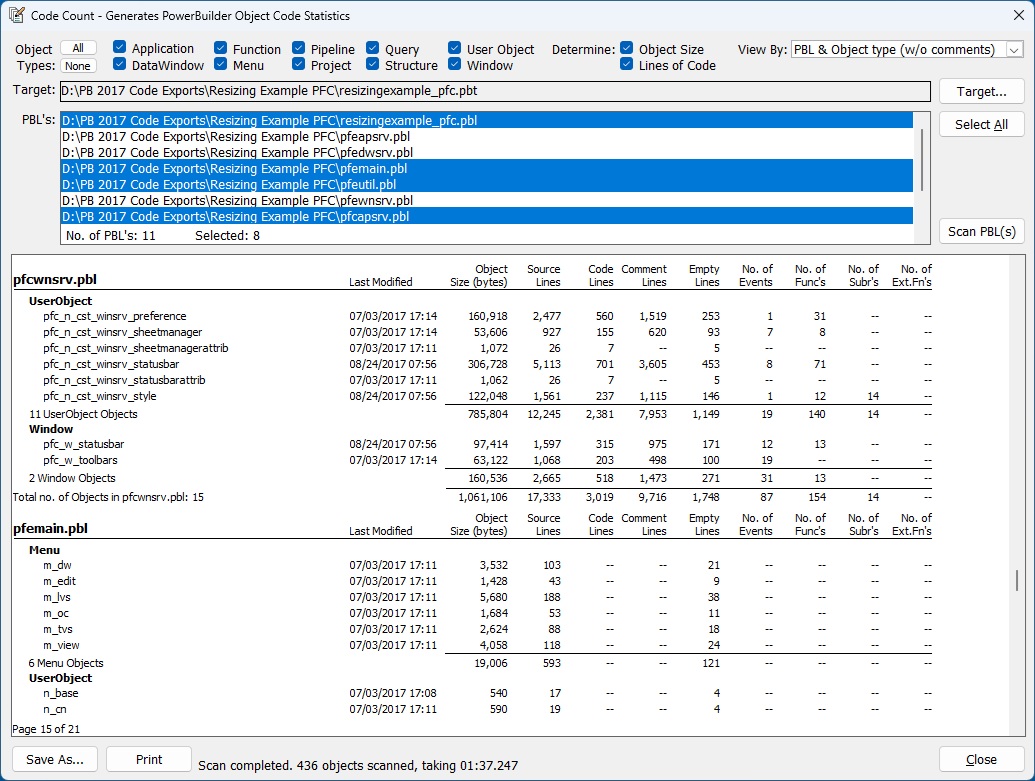
Here's a screen shot of the Code Count window:
You have the ability to select any or all of the ten PowerBuilder object types:

If you are not concerned about determining line count metrics, you can disable the collection of object size and/or line counts. Scans run markedly faster when line counts are disabled. You can choose from several report views or switch views after a scan has completed. The views by Object Type are useful in determining the total number of each type of object within the selected libraries. For example, if you wish to quickly determine the number of DataWindows in your application, uncheck all object types except for "DataWindow", uncheck the "Lines of Code" checkbox (shown below), and select all libraries.

Click the "Target..." command button to choose the Workspace Target or Solution Project to be scanned. After the target or project has been selected, a list of all of the libraries in its Library List are shown:

All libraries in the target or project are selected automatically. Extended row selection (example shown above) actions are supported, such as (Ctrl+click) to select/de-select a single row and (Ctrl+Shift+click) to select/de-select a range of rows. When some or all libraries are not selected, the "Select All" button will ensure all libraries are selected. This button changes to "Unselect All" when all libraries are selected.
An example of the "PBL and Object type (without comments)" report view is shown in the full window snapshot.
Below the report are command buttons to (1) save the report data in one of PowerBuilder's supported formats, (2) print the report, and (3) close the application.
The status area to the right of the Print button shows which library and object is being scanned while the scan runs. The status area displays a scan summary when the scan has finished, as shown below:

I hope you find the Code Count utility useful. Your feedback is welcomed and appreciated!
This message has an attachment file.
Please log in or register to see it.
Last Edit: 7 months 2 weeks ago by Aubrey Lin @Appeon .
Please Log in or Create an account to join the conversation.
The corrected app is now available for downloading.
Please Log in or Create an account to join the conversation.
 Posts: 7
This isn't the largest app I've worked on, but it does have over 1.2 million source lines. I'm sure others will benefit from your work as well, and I hope 99 million is sufficient for everyone! Thanks.
Please Log in or Create an account to join the conversation.
I appreciate you letting know about the report columns that too narrow to display large numbers, Jim. I have reviewed and modified all of the report DataWindows so that all of the line count columns and computed fields will display values up to 99,999,999. I hope that is adequate for your needs! The updated code will be uploaded here as soon as I can finish the changes needed to correct the issue reported by Ludek.
Please Log in or Create an account to join the conversation.