



With the latest Appeon product announcement ... "We would like to inform you that SnapDevelop is no longer under active development. It will remain available as a free download at https://file.appeon.com/download/devmagic/SnapDevelopEN-25.0.0.1560-Offline.zip in its current state until at least March 2027. No new features, enhancements, or future versions are planned", you might be wondering how to transparently support C# development in concert with your PB projects
With PowerBuilder 2025 product you might be using either the PowerServer and/or .NET DataStore projects. The logical step forward for the long term would be to use another IDE (e.g. like Microsoft's Visual Studio as one example). If you are using PB 2022 R3 or PB 2025, you can also use another .NET IDE right now for your existing PowerServer or .NET DataStore project types!
In this article, I would like to show you how easy it is to seamlessly move over to using Visual Studio from SnapDevelop. I have already reconfigured my PB 2025 GA and R2 versions to use the Visual Studio IDE and I would like to share with you how I did that. Currently, the PB IDE and the PowerServer / .NET DataStore projects will display the SnapDevelop C# interface in the PB IDE, as follows:
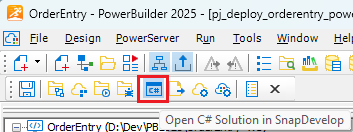
What you might like to do now is replace the SnapDevelop product shortcut with the Visual Studio shortcut for this and other C# projects. So step#1 would be first simply download and install the Visual Studio IDE in your development environment. For me, I am not a "power" Visual Studio software developer nor do I currently have Visual Studio installed (as some of you may have already), so I decided to download and install the Community Edition as it's free and it can do what I need for C# introspection and code changes (if required). So first of all, I visited the Microsoft download page, as follows:
 https://visualstudio.microsoft.com/downloads
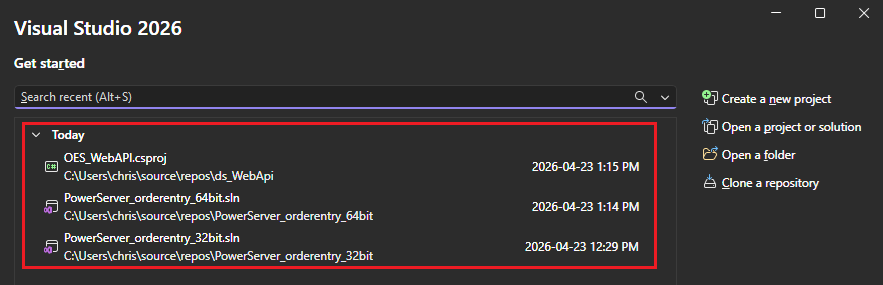
Once Visual Studio is installed, you can start the IDE. Note that already Visual Studio's default opening start folder is the same location that is used by SnapDevelop...
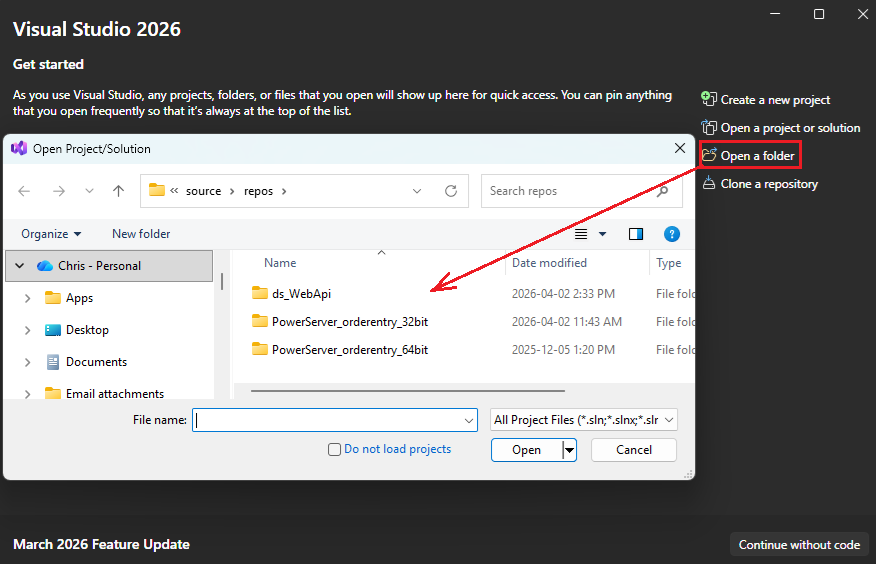
So now I can see both my PB 2025 PowerServer projects and one .NET DataStore C# projects as created by the PB IDE and maintained by SnapDevelop. You can then go ahead and open any of these projects in the Visual Studio IDE to introspect the generated C# structure and code.
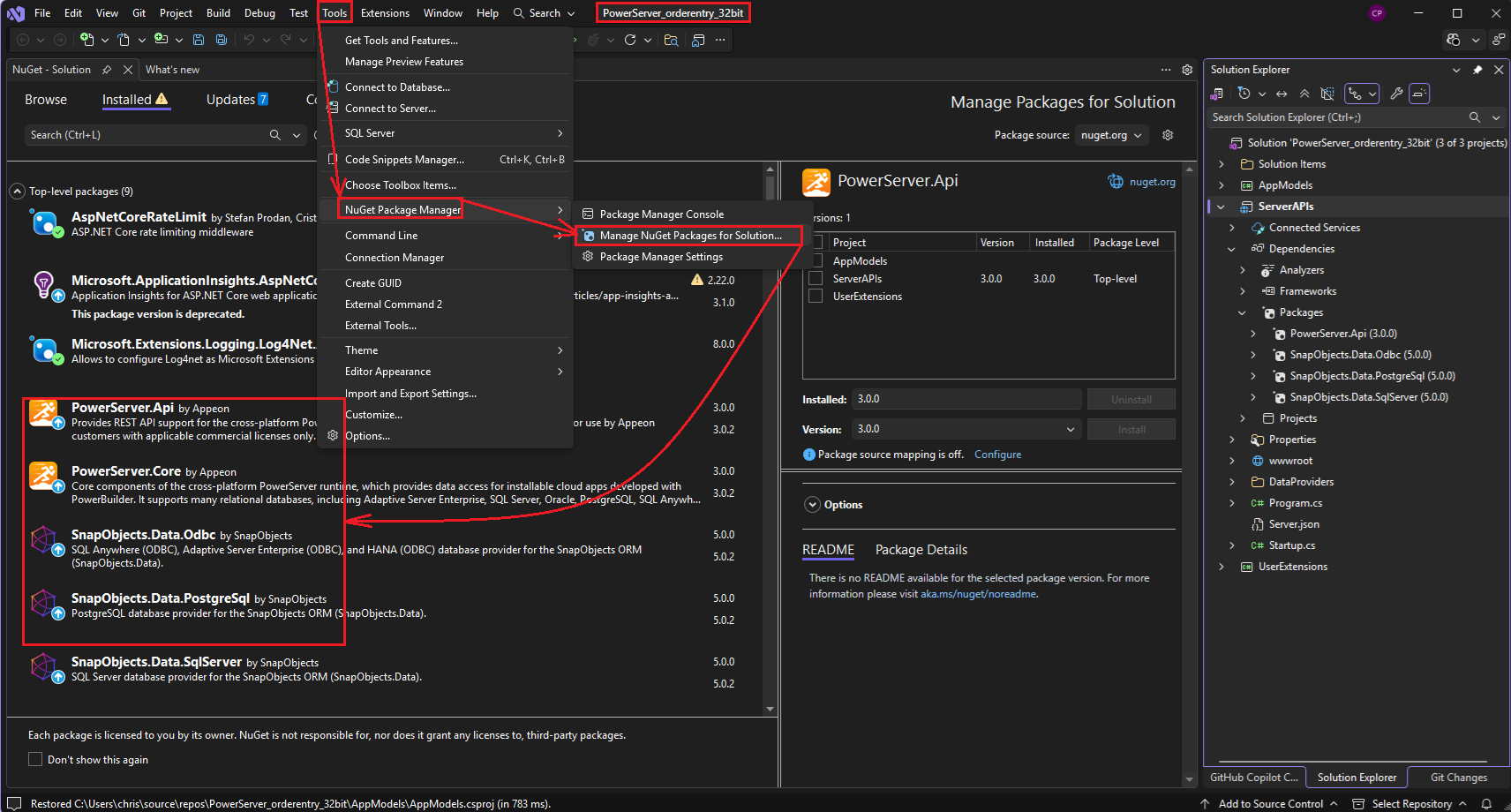
From the above, you can now see your PowerServer or .NET DataStore project structures, NuGet Packages used, inspect the C# code and all of the solutions classes and code!
So the next and last step I like to do is to now create a PB IDE shortcut for my PowerServer/.NET DataStore projects to use Visual Studio, as follows:
Step #1 - Locate the Visual Studio .exe shortcut and copy the path to the Microsoft Windows clipboard.
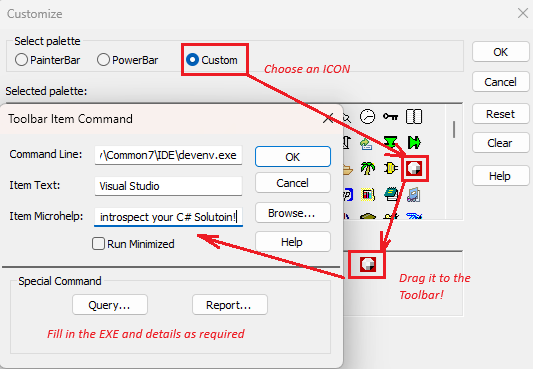
Step #2 - Customize the PowerServer/.NET DataStore project toolbar ...
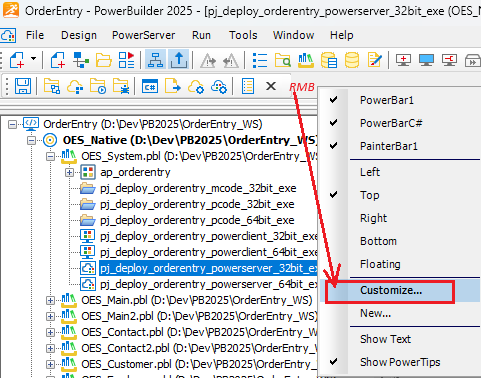
Step #3 - Choose a custom icon and paste the path to the Visual Studio .exe in to the mapping, as follows:
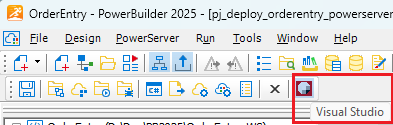
After selecting the OK button, this custom icon should now appear on your PB IDE's toolbar! Selecting the new icon should open the Visual Studio IDE which will default to the repository folder where all your generated PowerServer and .NET DataStore C# projects reside!
Comments (1)